
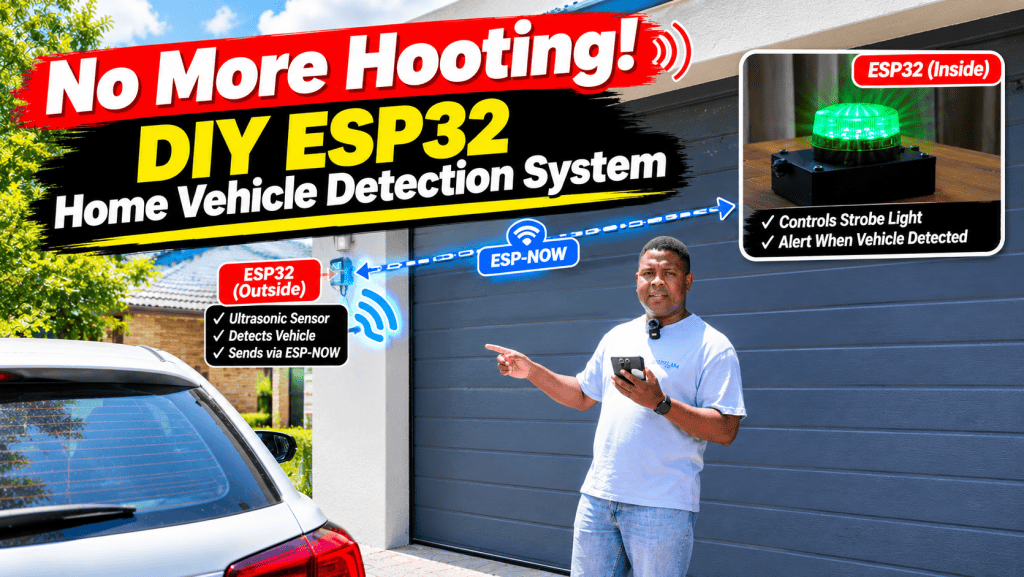
What you are building
You will build two small boxes that talk to each other without Wi-Fi: a sensor in the garage notices when your car has parked, and a strobe light inside the house flashes to tell you. When the car drives away, the strobe switches off.
The garage unit (the “sender”) uses an ultrasonic sensor, the same idea a bat uses, to measure how far away the car is. If something stays in front of it for 3 seconds, it decides a car has parked.
The indoor unit (the “receiver”) listens for messages from the garage. When it hears “car parked”, it switches on a 12V strobe light.
| Skill level | Beginner (some soldering helps, but is not essential for testing) |
| Time needed | About 1 weekend: 2–3 hours testing, 3–4 hours assembling, plus 3D printing time |
| Approximate cost | [PLACEHOLDER: add cost in your currency] |
| You will learn | ESP-NOW wireless, ultrasonic distance sensing, voltage dividers, buck converters, switching 12V loads with a MOSFET |
VIDEO : Full project walkthrough https://youtu.be/MPLwbUhHICc
Before you start
If you have never used an ESP32 before, do the previous tutorial first. It covers plugging the board in, uploading your first sketch and using the Serial Monitor, which this guide assumes you can do.
Previous tutorial — How the ESP32 works
Tools you will need
- A computer with the Arduino IDE (version 2.x recommended)
- A USB data cable for the ESP32 (some cables only charge — if the board is not detected, try another cable)
- A digital multimeter (essential — you will use it to set the buck converters)
- A small flat-head screwdriver (for the buck converter’s brass adjustment screw)
- Breadboard and jumper wires (for testing before you solder)
- Soldering iron, solder and heat-shrink tubing (for final assembly)
- Hot glue gun
- Access to a 3D printer, or a printing service
Parts list
| Part | Qty | Which unit | What it does |
|---|---|---|---|
| ESP32 Dev Board (30- or 38-pin) | 2 | Both | The “brain” and wireless radio of each unit |
| HC-SR04 Ultrasonic Sensor | 1 | Garage | Sends out sound pulses and times the echo to measure distance |
| LM2596 Buck Converter module | 2 | Both | Turns a higher voltage (7.4V or 12V) into a steady 5V for the ESP32 |
| IRLZ44N MOSFET | 1 | Indoor | An electronic switch that lets the ESP32 turn the 12V strobe on and off |
| 12V LED Strobe Light | 1 | Indoor | The visual alert |
| 1kΩ resistor | 1 | Garage | Top half of the voltage divider |
| 2.2kΩ resistor | 1 | Garage | Bottom half of the voltage divider |
| 220Ω resistor | 1 | Indoor | Protects the ESP32 pin that drives the MOSFET |
| 10kΩ resistor | 1 | Indoor | Keeps the strobe off while the ESP32 boots (“pull-down”) |
| 12V DC wall adapter (at least 1A) | 1 | Indoor | Powers the indoor unit and the strobe |
| 14500 Li-ion batteries (3.7V) | 2 | Garage | Battery power for the garage unit (see the battery note below) |
| 2× 14500 battery holder (series) | 1 | Garage | Holds the batteries and joins them to make ~7.4V |
| DC barrel jack socket | 1 | Indoor | Lets the wall adapter plug into the enclosure |
| Heat-shrink tubing, hook-up wire | — | Both | Insulating and joining connections |
| 3D printed enclosures | 2 | Both | A sealed box for the garage, a ventilated box for indoors |
Set up the Arduino IDE for ESP32 (do this first)
Out of the box, the Arduino IDE only knows about official Arduino boards. You need to install the ESP32 “board package” once so it can talk to your ESP32.
- Open the Arduino IDE and go to File > Preferences (on Mac: Arduino IDE > Settings).
- Find the field Additional Boards Manager URLs and paste in this address:
https://espressif.github.io/arduino-esp32/package_esp32_index.json - Click OK.
- Go to Tools > Board > Boards Manager.
- Search for esp32 and install esp32 by Espressif Systems. Make sure it is version 3.3.0 or newer — the final code in this guide will not compile on older versions.
- Plug in your ESP32, then choose Tools > Board > esp32 > ESP32 Dev Module and pick its port under Tools > Port.
Note: Older tutorials (including the original version of this one) use the address
https://dl.espressif.com/dl/package_esp32_index.json. That address is out of date and only offers old versions of the ESP32 package, which will cause errors with this project’s code. Use the address above instead.
Tip: If no port appears when you plug the board in, your computer may need a USB driver (usually CP210x or CH340, depending on the chip printed near the USB socket on your board).
3D printed enclosures
You need two enclosures:
- Garage box (sealed): has two round holes on the front for the sensor’s “eyes”, a base slot for the battery holder, and a lid with a groove for a rubber gasket or silicone seal.
- Indoor box (ventilated): has vent slots for heat, a side hole for the 12V power socket and a top hole for the strobe light’s wires.
3D PRINTING Enclosure files
https://www.thingiverse.com/thing:7423084
How the key parts work (the simple version)
You don’t need to understand every detail to build this, but knowing these five ideas will make wiring and fixing problems much easier.
1. ESP-NOW: talking without Wi-Fi
Normally, devices talk over Wi-Fi by joining your router with a password. ESP-NOW skips all of that. One ESP32 sends a tiny message straight to another ESP32, like passing a note directly to a friend instead of posting it.
- No router, password or internet needed.
- Very fast: messages arrive in a few milliseconds.
- Addressed by MAC address: every ESP32 has a unique 6-part ID, like
88:57:21:8B:C5:B4. The sender must know the receiver’s MAC address, which is why you look it up in the testing step.
For more on the ESP32’s , see the previous post.
2. The ultrasonic sensor: measuring with sound
The HC-SR04 has two round “eyes”. One is a tiny speaker that chirps a sound too high for you to hear; the other is a microphone that listens for the echo. The ESP32 times how long the echo takes to come back.
Sound travels about 0.0343cm per microsecond. The sound goes there and back, so the code divides by 2:
\text{distance (cm)} = \frac{\text{echo time } (\mu s) \times 0.0343}{2}
3. The voltage divider: protecting the ESP32
The sensor runs on 5V and sends its echo signal back at 5V. But the ESP32’s pins can only safely handle 3.3V. A voltage divider is two resistors that “share” the voltage between them, so only part of it reaches the ESP32.
With a 1kΩ resistor on top and a 2.2kΩ resistor to ground, the ESP32 sees:
5V \times \frac{2.2k\Omega}{1k\Omega + 2.2k\Omega} \approx 3.4VThat’s close enough to 3.3V to be safe and still be read as “HIGH”.
4. The buck converter: stepping voltage down
The ESP32 needs 5V on its 5V (VIN) pin, but your power sources give 7.4V (batteries) or 12V (wall adapter). The LM2596 buck converter switches the power on and off thousands of times a second and smooths the result into a steady, lower voltage. It wastes very little energy as heat compared to a simple regulator.
Important: it has a small brass screw that sets the output voltage. It is not set to 5V when you buy it. You must set it with a multimeter before connecting anything (Step 1).
5. The MOSFET: a switch the ESP32 can flip
An ESP32 pin can only give out a tiny amount of current at 3.3V, far too little to power a 12V strobe. The IRLZ44N MOSFET works like a tap: a small signal on its Gate pin opens a large path between its Drain and Source pins, letting the strobe’s 12V current flow without passing through the ESP32.
The IRLZ44N is a “logic-level” MOSFET, meaning 3.3V is enough to switch it on. (The similar-looking IRFZ44N is not logic-level and will not work reliably here — check the label.)
Looking at the front of the MOSFET (writing facing you, legs pointing down), the pins are Gate – Drain – Source, left to right.
The golden rule: common ground
Every part of a circuit needs the same “zero” reference to agree on voltages. In the indoor unit, the 12V adapter’s negative, the buck converter’s ground, the ESP32’s GND and the MOSFET’s Source must all be connected together. If they aren’t, the strobe will not switch on.
Safety first: read before you wire anything
- Set the buck converters before connecting the ESP32. Feeding 7.4V or 12V straight into an ESP32 destroys it instantly. Step 1 shows you how.
- Never connect USB and the buck converter at the same time unless you are sure they are both exactly 5V. While uploading code over USB, unplug the battery or wall adapter.
- Match your batteries. Never put a flat 14500 and a fully charged one in the same holder. The full one will try to charge the flat one, which can cause heat or fire. Charge both fully and check with a multimeter that they are within 0.1V of each other.
- Use protected batteries (with a built-in protection circuit) if you can, and never leave lithium batteries charging unattended.
- Insulate every joint. Use heat-shrink tubing or proper electrical tape on bare wires, resistor legs and MOSFET legs. Do not use masking or paper tape — it soaks up garage moisture and will eventually cause a short circuit.
- Check polarity twice. Red/positive and black/negative swapped on a buck converter or strobe can damage parts.
- Work unpowered. Disconnect power before moving any wire.
Step 1: Set both buck converters to 5.0V
Do this for both LM2596 modules before anything else. Nothing else should be connected to them yet.
- Set your multimeter to DC volts (the V with a straight line, 20V range if it is not auto-ranging).
- Connect your power source to the buck converter’s IN+ and IN− pads: the 12V wall adapter for the indoor module, the battery holder for the garage module.
- Touch the multimeter’s red probe to OUT+ and black probe to OUT−.
- Turn the brass screw on the blue box with a small screwdriver. On most modules, turning anticlockwise lowers the voltage. It may take 10–20 full turns before the number starts moving.
- Stop when the meter reads 5.0V (anything from 4.9V to 5.1V is fine).
- Disconnect the power, then reconnect it and check again that it still reads 5.0V.
- Label each module with a marker (“GARAGE – 5V”, “INDOOR – 5V”) so you don’t mix them up.
Tip: Put a small dab of nail polish or hot glue on the screw once set so it can’t get knocked.
Step 2: Wire the garage sender (ultrasonic sensor)
Build this on a breadboard first. You will only solder it once the tests in Step 4 pass.
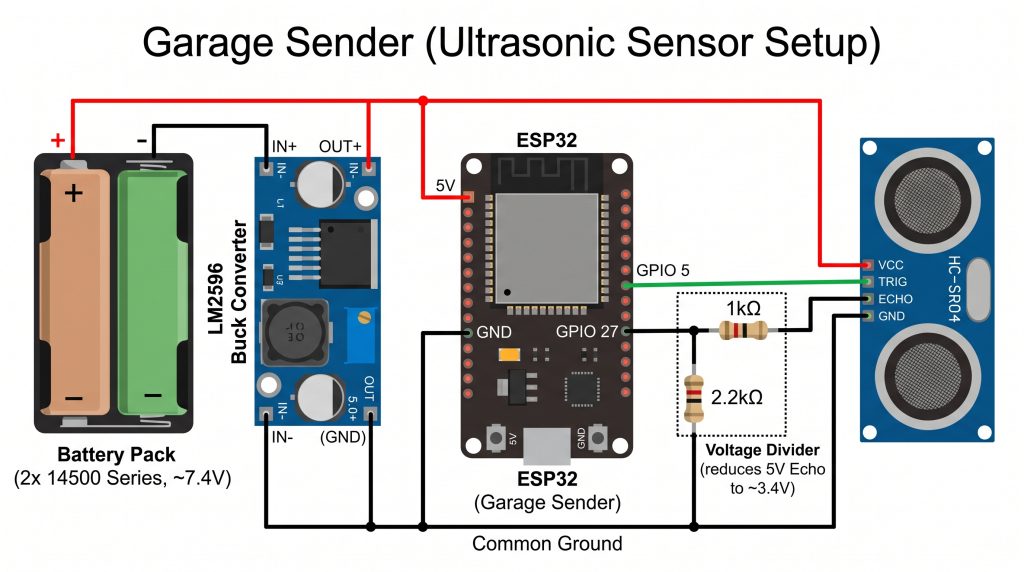
Connection table
| From | To | Notes |
|---|---|---|
| Battery holder + (red) | LM2596 IN+ | ~7.4V–8.4V |
| Battery holder − (black) | LM2596 IN− | Ground |
| LM2596 OUT+ (5V) | ESP32 5V / VIN pin | Never the 3.3V pin |
| LM2596 OUT+ (5V) | HC-SR04 VCC | The sensor needs 5V to work properly |
| LM2596 OUT− | ESP32 GND | Common ground |
| LM2596 OUT− | HC-SR04 GND | Common ground |
| HC-SR04 Trig | ESP32 GPIO 5 | Direct connection, no resistor needed |
| HC-SR04 Echo | 1kΩ resistor → ESP32 GPIO 27 | Top half of the voltage divider |
| Junction between 1kΩ and GPIO 27 | 2.2kΩ resistor → GND | Bottom half of the voltage divider |
How to build the voltage divider
This is the part beginners most often get wrong, so take it slowly:
- Connect one leg of the 1kΩ resistor (brown-black-red bands) to the sensor’s Echo pin.
- Connect the other leg of the 1kΩ resistor to a free breadboard row. Call this the middle point.
- Connect a wire from the middle point to GPIO 27.
- Connect one leg of the 2.2kΩ resistor (red-red-red bands) to the middle point too.
- Connect the other leg of the 2.2kΩ resistor to GND.
So the signal goes: Echo → 1kΩ → middle point → GPIO 27, with the 2.2kΩ “leaking” a little of it to ground.
Tip: If you have no 2.2kΩ resistor, two 1kΩ resistors in series (2kΩ) give about 3.3V and also work.
For testing over USB: While testing, you can skip the batteries and buck converter and power everything from the ESP32’s USB cable. Connect the sensor’s VCC to the ESP32’s 5V/VIN pin (it outputs 5V from USB).
Step 3: Wire the indoor receiver (strobe light)
The 12V from the wall adapter takes two paths: one straight to the strobe’s positive wire, the other through the buck converter to make 5V for the ESP32. The MOSFET sits on the strobe’s negative side and acts as the on/off switch to ground.
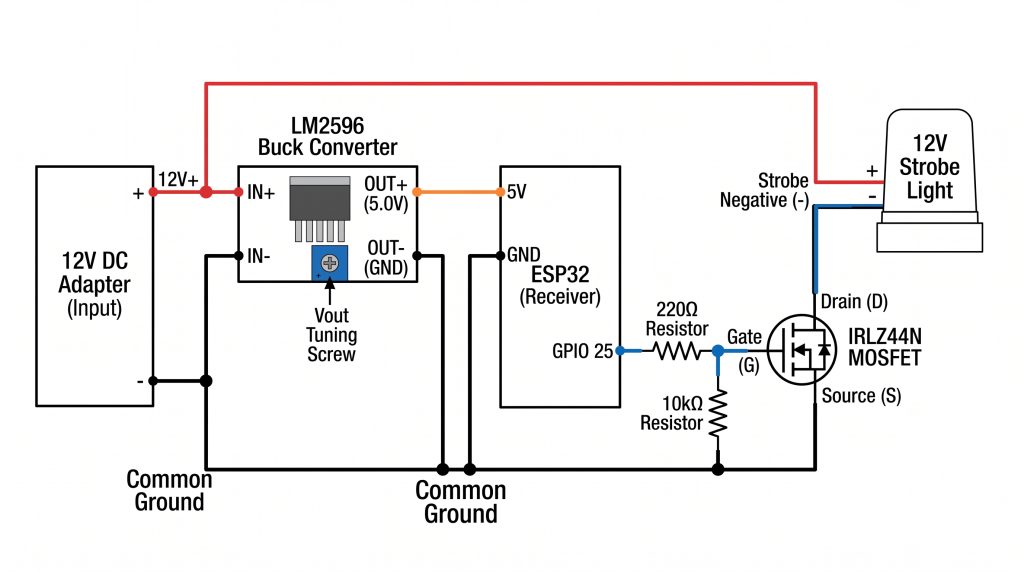
Connection table
| From | To | Notes |
|---|---|---|
| 12V adapter + | LM2596 IN+ | Path B: power for the ESP32 |
| 12V adapter + | Strobe + (red) | Path A: power for the strobe |
| 12V adapter − | LM2596 IN− | Ground |
| LM2596 OUT+ (5V) | ESP32 5V / VIN | Never the 3.3V pin |
| LM2596 OUT− | ESP32 GND | Common ground |
| ESP32 GPIO 25 | 220Ω resistor → MOSFET Gate (left leg) | Limits current spikes |
| MOSFET Gate | 10kΩ resistor → GND | Pull-down: keeps the strobe off at boot |
| Strobe − (black) | MOSFET Drain (middle leg) | The switched side |
| MOSFET Source (right leg) | GND (12V adapter −) | Common ground |
Step by step
- Push the MOSFET into the breadboard with the writing facing you, so each leg is in its own row.
- Connect the 220Ω resistor (red-red-brown) between ESP32 GPIO 25 and the MOSFET’s left leg (Gate).
- Connect the 10kΩ resistor (brown-black-orange) between the Gate and GND.
- Connect the strobe’s black (−) wire to the MOSFET’s middle leg (Drain).
- Connect the MOSFET’s right leg (Source) to GND.
- Connect the strobe’s red (+) wire to the 12V adapter’s positive.
- Check that all grounds — adapter, buck converter, ESP32 and MOSFET Source — are joined together.
Why the 10kΩ pull-down? When the ESP32 is starting up, GPIO 25 “floats” for a moment and could randomly flicker the strobe. The 10kΩ resistor gently holds the Gate at 0V until the code takes control.
Does the MOSFET get hot? With a typical LED strobe (under 1A), the IRLZ44N stays cool and needs no heatsink. If it feels hot, check you have the IRLZ44N (with the L), not the IRFZ44N.
Step 4: Test each part on its own
Testing one piece at a time means that if something doesn’t work, you know exactly where the problem is. For each test: upload the sketch, then open Tools > Serial Monitor and set the speed (bottom right) to 115200 baud.
Upload tip: If the upload hangs on “Connecting…”, hold the BOOT button on the ESP32 until the upload starts.
Test 1: Find the receiver’s MAC address (upload to the INDOOR board)
The sender needs the receiver’s unique address. Upload this to the indoor ESP32 and write down what it prints.
What you should see: something like Receiver MAC Address: 88:57:21:8B:C5:B4. If you see 00:00:00:00:00:00, press the board’s EN/RST button to restart it.
Write it down. You’ll turn it into code format in Step 5: 88:57:21:8B:C5:B4 becomes { 0x88, 0x57, 0x21, 0x8B, 0xC5, 0xB4 }.
Test 2: Check the ultrasonic sensor (upload to the GARAGE board)
#define TRIG_PIN 5
#define ECHO_PIN 27

void setup() {
  Serial.begin(115200);
  pinMode(TRIG_PIN, OUTPUT);
  pinMode(ECHO_PIN, INPUT);
  Serial.println("Sensor Test Started...");
}

void loop() {
  // Make sure the trigger starts LOW
  digitalWrite(TRIG_PIN, LOW);
  delayMicroseconds(2);

  // Send a 10-microsecond pulse: this makes the sensor "chirp"
  digitalWrite(TRIG_PIN, HIGH);
  delayMicroseconds(10);
  digitalWrite(TRIG_PIN, LOW);

  // Measure how long the echo lasts (give up after 30ms)
  long duration = pulseIn(ECHO_PIN, HIGH, 30000);

  // Convert time to distance in cm (999 means "no echo")
  float distance = (duration > 0) ? (duration * 0.0343 / 2) : 999;

  if (distance == 999) {
    Serial.println("Out of range or wiring error");
  } else {
    Serial.print("Distance: ");
    Serial.print(distance);
    Serial.println(" cm");
  }

  delay(500);
}
What you should see: hold your hand about 30cm in front of the sensor and move it closer and further away. The numbers should follow your hand. A ruler or tape measure is handy to check accuracy.
Test 3: Check the strobe circuit (upload to the INDOOR board)
This makes sure the MOSFET and strobe are wired correctly before any wireless code is involved. Plug in the 12V adapter for this test.
#define STROBE_PIN 25

void setup() {
  Serial.begin(115200);
  pinMode(STROBE_PIN, OUTPUT);
  digitalWrite(STROBE_PIN, LOW);
  Serial.println("Strobe Test Started...");
}

void loop() {
  Serial.println("Strobe ON");
  digitalWrite(STROBE_PIN, HIGH);
  delay(3000);

  Serial.println("Strobe OFF");
  digitalWrite(STROBE_PIN, LOW);
  delay(3000);
}
What you should see: the strobe switches on for 3 seconds, off for 3 seconds, over and over, matching the Serial Monitor messages.
Step 5: Upload the final code
Once all three tests pass, upload the final sketches. Upload the receiver first so it is already listening when the sender starts.
The indoor receiver sketch (upload to the INDOOR board)
The receiver waits for messages. When one says the car is parked, it turns the strobe on. As a safety net, if it hears nothing from the garage for 5 seconds (for example, the batteries died), it switches the strobe off and reports “Signal lost” rather than staying on forever.
/*
===========================================================
ESP32 GARAGE VEHICLE DETECTOR (RECEIVER)


FUNCTION:
- Listens for ESP-NOW messages from the Garage Sender
- Activates a 12V LED Strobe via an N-Channel MOSFET
  when a vehicle is detected.
===========================================================
*/


// Include the standard ESP32 Wi-Fi library needed for the radio hardware
#include <WiFi.h>
// Include the ESP-NOW library for peer-to-peer wireless communication
#include <esp_now.h>


// ---------------- PINS ----------------


// Define the ESP32 GPIO pin connected to the MOSFET Gate (via a 220-ohm resistor)
#define STROBE_PIN 25


// ---------------- DATA STRUCTURE ----------------


// Define the structure of the incoming data packet
// This MUST exactly match the "Message" struct in the Sender's code
typedef struct {
  bool carDetected; // True means turn light ON, False means turn light OFF
} Message;


// Create an instance of the Message struct named 'incomingData' to store received values
Message incomingData;


// ---------------- CALLBACK ----------------


// This function runs automatically in the background whenever an ESP-NOW packet arrives
void OnDataRecv(const esp_now_recv_info_t *info,
                const uint8_t *incomingDataRaw,
                int len)
{
  // Copy the raw bytes received from the network into our 'incomingData' struct
  memcpy(&incomingData, incomingDataRaw, sizeof(incomingData));


  // Print a label to the Serial Monitor for debugging
  Serial.print("Car Detected: ");
  // Print "YES" if carDetected is true, or "NO" if it is false
  Serial.println(incomingData.carDetected ? "YES" : "NO");


  // Control the MOSFET (and thus the strobe light) based on the received data
  if (incomingData.carDetected) {
    // Send 3.3V to the MOSFET Gate, completing the 12V circuit and turning the strobe ON
    digitalWrite(STROBE_PIN, HIGH);
  } else {
    // Drop the MOSFET Gate to 0V, breaking the 12V circuit and turning the strobe OFF
    digitalWrite(STROBE_PIN, LOW);
  }
}


// ---------------- SETUP ----------------


// The setup function runs once when the ESP32 is powered on
void setup() {
  // Start the serial connection at 115200 baud so we can read messages on the computer
  Serial.begin(115200);


  // Configure the STROBE_PIN (GPIO 25) to act as an output so it can send voltage
  pinMode(STROBE_PIN, OUTPUT);

  // Immediately set the pin to LOW (0V) to ensure the strobe light stays off during startup
  digitalWrite(STROBE_PIN, LOW);


  // Set the Wi-Fi chip to Station mode (WIFI_STA), which is required for ESP-NOW to work
  WiFi.mode(WIFI_STA);


  // Print a label for the MAC address
  Serial.print("Receiver MAC Address: ");
  // Print this specific ESP32's unique MAC address (needed for the Sender code)
  Serial.println(WiFi.macAddress());


  // Initialize the ESP-NOW protocol and check if it started successfully
  if (esp_now_init() != ESP_OK) {
    // If it fails, print an error and halt further setup
    Serial.println("ESP-NOW Initialization Failed");
    return;
  }


  // Tell ESP-NOW to trigger the 'OnDataRecv' function whenever a new message arrives
  esp_now_register_recv_cb(OnDataRecv);


  // Print a final startup message indicating the receiver is successfully listening
  Serial.println("ESP-NOW Receiver Ready. Waiting for vehicle detection...");
}


// ---------------- LOOP ----------------


// The loop function runs continuously, but is left empty here
void loop() {
  // Nothing is needed in the main loop.
  // The 'OnDataRecv' callback function handles the ESP-NOW messages
  // and MOSFET switching automatically in the background as soon as data arrives.
}
The garage sender sketch (upload to the GARAGE board)
Before uploading: replace the numbers in receiverMAC[] with the address you wrote down in Test 1.
The sender measures the distance about 6 times a second. An object must stay between 20cm and 200cm for 3 seconds before it counts as a parked car. To stop one bad reading from switching the strobe off, the object must be missing for 5 readings in a row before the sender gives the all-clear.
/*
===========================================================
ESP32 GARAGE SENDER (Distance Window & 3-Second Filter)
- Echo on Pin 27
- Detects objects between a minimum and maximum distance
- Requires object to be present for 3 continuous seconds
  before triggering the receiver.
===========================================================
*/


// Include the Wi-Fi library needed to use the ESP32 radio
#include <WiFi.h>
// Include the ESP-NOW library for direct device-to-device communication
#include <esp_now.h>


// Define the GPIO pin connected to the sensor's TRIG (Trigger) pin
#define TRIG_PIN 5
// Define the GPIO pin connected to the sensor's ECH  O (Receive) pin
#define ECHO_PIN 27


// --- SETTINGS ---
// Define the closest an object can be (in cm) to be considered valid
#define MIN_DETECTION_DISTANCE 20 // 20 cm (Adjust as needed)
// Define the farthest an object can be (in cm) to be considered valid
#define MAX_DETECTION_DISTANCE 200 // 2.0 meters (in cm)
// Define how long the object must stay in the zone before confirming
#define CONFIRMATION_TIME_MS 3000 // 3 seconds


// Array holding the exact MAC address of the receiver ESP32
uint8_t receiverMAC[] = { 0x88, 0x57, 0x21, 0x8B, 0xC5, 0xB4 };


// Define a structured data packet to send over ESP-NOW
typedef struct {
  bool carDetected; // True if car is confirmed, False if path is clear
} Message;


// Create an instance of the Message struct named 'data'
Message data;


// --- TIMING VARIABLES ---
// Variable to store the exact millisecond the sensor first saw the object
unsigned long detectStartTime = 0;
// Boolean flag to track if the 3-second countdown is currently running
bool isTiming = false;
// Boolean flag to track if the object has successfully passed the 3-second test
bool carConfirmed = false;


// Callback function that runs automatically after every ESP-NOW transmission
void OnDataSent(const wifi_tx_info_t *tx_info, esp_now_send_status_t status) {
  // Keeping this silent to keep the Serial Monitor clean,
  // but you can add print statements if troubleshooting connection.
}


// Setup function runs exactly once when the ESP32 boots up
void setup() {
  // Start the serial monitor at a baud rate of 115200 for debugging
  Serial.begin(115200);


  // Configure the trigger pin to output voltage (send sound)
  pinMode(TRIG_PIN, OUTPUT);
  // Configure the echo pin to read incoming voltage (listen for sound)
  pinMode(ECHO_PIN, INPUT);


  // Set the ESP32 Wi-Fi chip to Station mode (required for ESP-NOW)
  WiFi.mode(WIFI_STA);

  // Initialize the ESP-NOW protocol and check if it started successfully
  if (esp_now_init() != ESP_OK) {
    // If it failed, print an error and stop the setup process
    Serial.println("ESP-NOW Init Failed");
    return;
  }

  // Tell ESP-NOW to use the OnDataSent function whenever a message is sent
  esp_now_register_send_cb(OnDataSent);


  // Create a configuration structure for the receiver we want to talk to
  esp_now_peer_info_t peerInfo = {};
  // Copy the receiver's MAC address into the configuration
  memcpy(peerInfo.peer_addr, receiverMAC, 6);
  // Set the Wi-Fi channel to 0 (default)
  peerInfo.channel = 0;
  // Disable encryption for simplicity and speed
  peerInfo.encrypt = false;
  // Officially add the receiver to the ESP32's list of known peers
  esp_now_add_peer(&peerInfo);


  // Print a startup message indicating the sender is ready
  Serial.println("Sender Ready. Monitoring distance window...");
}


// Loop function runs continuously over and over
void loop() {
  // 1. Send Ping: Ensure the trigger pin is low to start clean
  digitalWrite(TRIG_PIN, LOW);
  // Wait 2 microseconds
  delayMicroseconds(2);
  // Pull the trigger pin high to send the ultrasonic pulse
  digitalWrite(TRIG_PIN, HIGH);
  // Keep it high for 10 microseconds (the required trigger length)
  delayMicroseconds(10);
  // Pull the trigger pin low to stop sending the pulse
  digitalWrite(TRIG_PIN, LOW);


  // 2. Read Echo: Measure how long the echo pin stays high (timeout after 30ms)
  long duration = pulseIn(ECHO_PIN, HIGH, 30000);
  // Calculate distance: if duration > 0, convert time to cm, else assign 999 (error)
  float distance = (duration > 0) ? (duration * 0.0343 / 2) : 999;


  // Print the word "Distance: " to the serial monitor
  Serial.print("Distance: ");
  // Check if the sensor timed out (returned 999)
  if (distance == 999) {
    // Print that the object is out of range
    Serial.println("Out of range");
  } else {
    // Print the actual calculated distance
    Serial.print(distance);
    // Print the unit " cm"
    Serial.println(" cm");
  }


  // 3. Evaluate Distance: Check if distance is between the min and max thresholds
  bool objectInZone = (distance >= MIN_DETECTION_DISTANCE && distance <= MAX_DETECTION_DISTANCE);


  // 4. 3-Second Filter Logic: Execute if an object is currently in the valid zone
  if (objectInZone) {
    // If the object just entered the zone and the timer isn't running yet
    if (!isTiming) {
      // Set the flag to indicate the timer has started
      isTiming = true;
      // Record the current time in milliseconds
      detectStartTime = millis();
      // Print a message indicating the countdown has begun
      Serial.println("Object detected in zone - starting 3-second timer...");
    }
    // If the timer is already running, check if 3000ms (3 seconds) have passed
    else if (millis() - detectStartTime >= CONFIRMATION_TIME_MS) {
      // If 3 seconds have passed and we haven't confirmed the car yet
      if (!carConfirmed) {
        // Set the flag to indicate the car is officially confirmed
        carConfirmed = true;
        // Print a message indicating the alert is being triggered
        Serial.println("CAR CONFIRMED! Sending alert.");
      }
    }
  }
  // Execute if the object left the zone or the sensor got a bad reading
  else {
    // If a timer was running or a car was confirmed, but the path is now clear
    if (isTiming || carConfirmed) {
      // Print a message indicating the system is resetting
      Serial.println("Path clear or object out of bounds. Resetting timer.");
    }
    // Reset the timer flag
    isTiming = false;
    // Reset the car confirmation flag
    carConfirmed = false;
  }


  // 5. Send ESP-NOW Message: Update the struct with the current confirmed state
  data.carDetected = carConfirmed;
  // Send the data packet to the receiver MAC address
  esp_now_send(receiverMAC, (uint8_t *)&data, sizeof(data));


  // Wait 150 milliseconds before looping again to avoid overwhelming the sensor
  delay(150);
}
First full test
- Power both units and open the Serial Monitor for each (if you only have one computer, test one side at a time).
- Hold your hand or a box 50–100cm in front of the sensor for more than 3 seconds.
- The sender should print
CAR CONFIRMED! Sending alert, the receiver should printCar Detected: YES, and the strobe should turn on. - Move your hand away. Within about a second, the strobe should switch off.
Step 6: Assemble, install and fine-tune
Only move from the breadboard to soldered wiring once the first full test works. Follow the same connection tables from Steps 2 and 3, and slide heat-shrink over each wire before soldering it.
Garage sender assembly
- Mount the sensor: push the HC-SR04’s two round “eyes” through the holes in the front of the garage box. Fix the board in place with small screws or a few dabs of hot glue (keep glue off the eyes).
- Fit the power: place the battery holder in the base of the box and mount the tuned buck converter next to it.
- Wire it up: batteries to the buck converter input; buck converter 5V output to the ESP32’s 5V/VIN pin and the sensor’s VCC; grounds together; Trig to GPIO 5; Echo through the voltage divider to GPIO 27.
- Insulate: cover the voltage divider resistors and every joint with heat-shrink.
- Seal the box: fit a rubber gasket or run a bead of silicone around the lid, because garages get damp and change temperature a lot.
Indoor receiver assembly
- Mount the parts: fix the ESP32, buck converter and MOSFET inside the ventilated box. Keep the vents clear, because the buck converter gets slightly warm.
- Route the cables: fit the DC barrel jack in the side hole for the 12V adapter, and feed the strobe wires out through the top hole.
- Wire it up: 12V to the buck converter input and the strobe’s red wire; 5V output to the ESP32; GPIO 25 → 220Ω → Gate; 10kΩ from Gate to GND; strobe black wire to Drain; Source to GND.
- Check the common ground with your multimeter on continuity mode: the adapter’s negative, ESP32 GND and MOSFET Source should all beep together.
- Insulate all MOSFET legs and joints with heat-shrink.
Installing in the garage
- Mount the garage unit on the wall in front of where the car’s bumper stops, at roughly bumper height (about 40–60cm off the floor).
- Point the sensor straight at the bumper, not at an angle. Ultrasonic sensors see flat surfaces best.
- Keep it away from things that move or hang, like cables, tools or bikes, within the detection zone.
- Make sure the receiver is in range. ESP-NOW usually works through a wall or two, but thick concrete or metal garage doors can block it. Test the signal before you fix anything permanently.
Fine-tuning for your garage
You can change these numbers at the top of the sender sketch:
| Setting | Default | Change it if… |
|---|---|---|
MIN_DETECTION_DISTANCE |
20cm | The car parks very close to the sensor |
MAX_DETECTION_DISTANCE |
200cm | The sensor is picking up the far wall or garage door (lower it), or your car stops further away (raise it, max ~400cm) |
CONFIRMATION_TIME_MS |
3000 (3 seconds) | People walking past trigger it (raise it), or you want a faster alert (lower it) |
OUT_OF_ZONE_LIMIT |
5 readings | The strobe flickers while the car is parked (raise it) |
Tip: Use Test 2 (the sensor test) with the car parked to see the exact distance, then set the detection window around it.
How the whole system works, start to finish
- The approach: you drive into the garage. The sensor’s sound pulses bounce off the bumper and the ESP32 works out the car is, say, 120cm away.
- The filter: 120cm is inside the 20–200cm zone, so the sender starts a hidden 3-second stopwatch. Someone walking past would leave the zone before 3 seconds and the stopwatch would reset.
- The confirmation: the car stays put for 3 seconds, so the sender decides “car parked” and prints
CAR CONFIRMED! Sending alert. - The message: the sender packs
carDetected = trueinto a tiny ESP-NOW message and sends it straight to the receiver’s MAC address. It keeps sending the current state about 6 times a second. - The reception: a few milliseconds later the indoor ESP32 receives the message and notes the time it arrived.
- The switch: the receiver sets GPIO 25 HIGH (3.3V). This opens the MOSFET, connecting the strobe’s negative wire to ground, and the 12V strobe lights up.
- Leaving: when the car drives away, the sender sees nothing in the zone for 5 readings, sends
carDetected = false, and the receiver switches the strobe off. - The safety net: if the garage unit stops sending (for example, flat batteries), the receiver turns the strobe off after 5 seconds and prints
Signal lost.
Fine-tuning for your garage
You can change these numbers at the top of the sender sketch:
| Setting | Default | Change it if… |
|---|---|---|
MIN_DETECTION_DISTANCE |
20cm | The car parks very close to the sensor |
MAX_DETECTION_DISTANCE |
200cm | The sensor is picking up the far wall or garage door (lower it), or your car stops further away (raise it, max ~400cm) |
CONFIRMATION_TIME_MS |
3000 (3 seconds) | People walking past trigger it (raise it), or you want a faster alert (lower it) |
OUT_OF_ZONE_LIMIT |
5 readings | The strobe flickers while the car is parked (raise it) |
Tip: Use Test 2 (the sensor test) with the car parked to see the exact distance, then set the detection window around it.
How the whole system works, start to finish
- The approach: you drive into the garage. The sensor’s sound pulses bounce off the bumper and the ESP32 works out the car is, say, 120cm away.
- The filter: 120cm is inside the 20–200cm zone, so the sender starts a hidden 3-second stopwatch. Someone walking past would leave the zone before 3 seconds and the stopwatch would reset.
- The confirmation: the car stays put for 3 seconds, so the sender decides “car parked” and prints
CAR CONFIRMED! Sending alert. - The message: the sender packs
carDetected = trueinto a tiny ESP-NOW message and sends it straight to the receiver’s MAC address. It keeps sending the current state about 6 times a second. - The reception: a few milliseconds later the indoor ESP32 receives the message and notes the time it arrived.
- The switch: the receiver sets GPIO 25 HIGH (3.3V). This opens the MOSFET, connecting the strobe’s negative wire to ground, and the 12V strobe lights up.
- Leaving: when the car drives away, the sender sees nothing in the zone for 5 readings, sends
carDetected = false, and the receiver switches the strobe off. - The safety net: if the garage unit stops sending (for example, flat batteries), the receiver turns the strobe off after 5 seconds and prints
Signal lost.
Troubleshooting
Find the problem that matches what you see, try the fix, then use the “It’s fixed when…” line to confirm.
The code won’t compile: errors mentioning wifi_tx_info_t or esp_now_recv_info_t
- Cause: your ESP32 board package is too old.
- Fix: check the board manager URL in Preferences matches the one in “Before you start”, then update esp32 by Espressif Systems to version 3.3.0 or newer in the Boards Manager.
- It’s fixed when: the sketch compiles with “Done compiling”.
The upload fails or sticks on “Connecting…”
- Cause: the board isn’t in upload mode, the wrong port is selected, or the USB cable is charge-only.
- Fix: hold the BOOT button while the upload starts; check Tools > Port; try a different USB cable.
- It’s fixed when: the upload reaches 100% and says “Hard resetting”.
The Serial Monitor shows gibberish
- Cause: the baud rate doesn’t match.
- Fix: set the Serial Monitor to 115200 baud.
- It’s fixed when: you can read the messages.
The ESP32 keeps rebooting, or prints “Brownout detector was triggered”
- Cause: the ESP32 isn’t getting enough power. Each wireless message causes a short spike in current, and flat batteries or a weak supply can’t keep up.
- Fix: recharge the batteries and check the buck converter still reads 5.0V, including while the ESP32 is running. Check the power wires are firmly connected. If the problem continues, switch the garage unit to a 5V USB charger.
- It’s fixed when: the Serial Monitor runs without restarting.
The sensor always says 999cm / “Out of range or wiring error”, or the numbers jump around wildly
- Cause: the sensor isn’t getting 5V, Trig and Echo are swapped, or the voltage divider is wired wrong.
- Fix: make sure the sensor’s VCC goes to 5V (not the ESP32’s 3.3V pin); check Trig → GPIO 5 and Echo → divider → GPIO 27; re-check the divider against Step 2. Also make sure nothing soft (like a towel or curtain) is in front of it — soft surfaces absorb sound.
- It’s fixed when: the distances follow your hand steadily.
The sender prints “CAR CONFIRMED! Sending alert”, but the receiver prints nothing
- Cause: the messages are going to the wrong address — the MAC in the sender code doesn’t match the receiver.
- Fix: run Test 1 on the receiver again, copy the address carefully, and update
receiverMAC[]in the sender sketch. Also check the units aren’t too far apart for the first test. - It’s fixed when: the receiver prints
Car Detected: YESas soon as the sender confirms.
The receiver prints “Car Detected: YES”, but the strobe stays off
- Cause: the wireless part works fine; the problem is in the MOSFET circuit.
- Fix: check the MOSFET legs (Gate → 220Ω → GPIO 25, Drain → strobe black, Source → GND); check the 10kΩ is connected between Gate and GND; most importantly, check the 12V adapter ground and ESP32 ground are connected. Run Test 3 again. Check you have an IRLZ44N, not an IRFZ44N.
- It’s fixed when: holding your hand in front of the sender turns the strobe on.
The strobe flashes briefly when the receiver is first plugged in
- Cause: the 10kΩ pull-down resistor is missing or loose.
- Fix: make sure the 10kΩ resistor connects the MOSFET’s Gate to GND.
- It’s fixed when: the strobe stays off at power-up.
The receiver prints “Signal lost”
- Cause: the garage unit has stopped sending — flat batteries, a crash, or it’s out of range.
- Fix: check the garage unit’s power first; then move the units closer to test range.
- It’s fixed when: the message stops and normal detection resumes.
The strobe turns on when nobody has parked
- Cause: something in the detection zone (a bin, a bike, the garage door when closed) is being seen as a car.
- Fix: use Test 2 to find what distance it is reading, then lower
MAX_DETECTION_DISTANCEso that object is outside the zone. - It’s fixed when: the strobe only turns on with the car parked.
Glossary
| Term | Meaning |
|---|---|
| Baud rate | The speed the ESP32 and your computer use to talk over USB. Both sides must match (115200 here). |
| Buck converter | A module that efficiently lowers a voltage, e.g. 12V to 5V. |
| Common ground | All the negative/GND connections joined together so every part shares the same 0V reference. |
| ESP-NOW | Espressif’s way for ESP32s to send short messages directly to each other, without a router. |
| GPIO | “General Purpose Input/Output” — the numbered pins you control from code. |
| MAC address | A unique hardware ID for each ESP32’s radio, written as six pairs like 88:57:21:8B:C5:B4. |
| MOSFET | An electronic switch. A small voltage on the Gate lets a large current flow from Drain to Source. |
| Pull-down resistor | A resistor to ground that keeps a pin at 0V when nothing else is driving it. |
| Serial Monitor | The Arduino IDE window that shows messages the ESP32 prints. |
| Sketch | An Arduino program. |
| Voltage divider | Two resistors that reduce a voltage to a safe fraction of it. |
Next steps and ideas
- Longer battery life: put the garage ESP32 into deep sleep between readings and only send a message when the state changes. This could stretch battery life from hours to weeks.
- A parking guide: add an LED in the garage that turns red when the car is close enough to stop.
- Phone notifications: connect the indoor ESP32 to your home Wi-Fi and send a phone alert as well as flashing the strobe.
- A buzzer: add a small buzzer alongside the strobe for an audible alert.